
Every organisation already has somewhere to keep files. The problem is not the lack of a place. It is that the same file exists in several versions in several places, and nobody can say for certain which one is the version actually in use.
The other common symptom is that the file is in the right folder, but the person who needs it cannot find it, because they did not start looking from a folder. They started from a piece of work, such as that invoice, or that employee.
This article explains what Odoo Documents does, how it differs from an ordinary shared drive, and what has to be decided before you start using it.
What Odoo Documents is
Odoo Documents is a centralised file management area inside Odoo itself. Users store, organise, view and manage files in the same place where the rest of the work already happens.
The workspace is divided into familiar sections: All, Company for files shared across the organisation, My Drive as a personal area, Shared with me, Recent and Trash. Folders can be nested into a hierarchy as needed.
How it differs from file storage
Purely as storage, an ordinary drive does the job. The difference lies in the four points below, and the first is the one a drive cannot do.
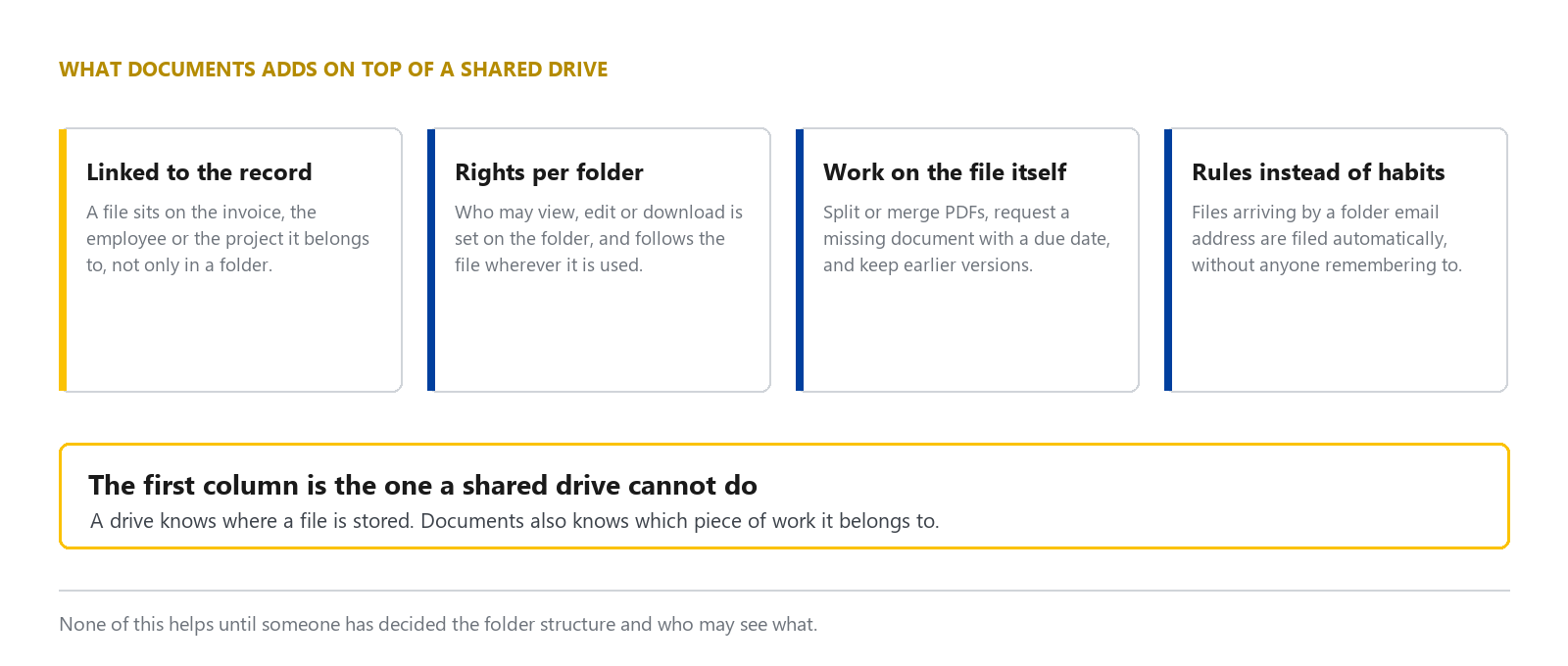
The first point is that files attach to work, not only to folders. Used alongside other applications, the system files documents automatically against that work. Accounting creates subfolders per journal, and HR creates subfolders per employee with tags applied.
The result is that whoever has the invoice open sees the related files immediately, without leaving the task at hand to search a folder tree.
The second point is that rights are set on the folder, through the Share command, and files go out through links whose access can be controlled. That is unlike an email attachment, which cannot be controlled at all once sent.
Supported document tasks
The system can act on the file itself without downloading it elsewhere. The most used are splitting a PDF into pages or groups, merging several PDFs into one, managing versions, and locking a file so nobody edits it while it is in use.
One command that proves more useful than expected is requesting a document from someone else. The system creates an outstanding item with a due date and reminders, instead of somebody having to chase it. It suits work that collects paperwork from several people, such as supplier registration, or gathering supporting evidence for a bid.
Set rules for automatic document filing
A folder can be given its own email address, and files sent to that address are filed into the folder automatically. This addresses the most common failure in document handling, which is that paperwork arrives by email and then sits in one person's inbox.
More elaborate rules live under Automations, which requires Studio to be activated before rules can be created. This is worth knowing at the outset because it affects which plan is appropriate.
How DigitechX uses this system
DigitechX uses this area as the organisation's central knowledge base. Our system currently holds 304 folders and 707 files and other items, with the connectors to accounting, HR, products, projects and spreadsheets installed.
Our knowledge base is organised into six main groups: company information and credentials, products and services, project references and lessons, pre-sales knowledge, standards and guidelines, and internal tools.
What we have found from real use is that the benefit does not come from the software. It comes from deciding what belongs in which group, and who should see what. Without that decision first, the result is simply one more cluttered drive.
What to know before starting
First, Documents is not where you write content. It is where files are kept. If the aim is to write manuals or record knowledge directly in the system, the knowledge base area is the closer fit. These two are regularly mistaken for each other. What the knowledge base area can do is covered separately in the article on what Odoo Knowledge does
Second, file size. Odoo's documentation states a maximum of 64 megabytes per file for use on Odoo Online. An organisation with large drawing files and video needs to plan for that in advance.
Third, the trash keeps deleted files for 30 days by default. It can be changed, but it has to be changed deliberately, not discovered at the moment a file is needed back.
Fourth, moving existing paperwork into the system is not a one-day job, and it is always the part of this kind of work that takes the most time.
Can you start with just this part
A question we are often asked is whether an organisation not ready for a full system can start with one part. We answered that for the website part in the article on starting with only the website part of an ERP
The same reasoning applies to the documents part. Start with whatever hurts most, then extend.
To make documents easier to find, tell DigitechX how you store files and which documents employees spend the most time finding or chasing. We can then choose what to improve first.